Atlassian Tools
How to Build an AI-Powered Confluence Knowledge Base with HTML Macro
•
min read




Every knowledge base has the same hidden bottleneck, and it's not writing. It's that the person who knows exactly what a page should do is almost never the person who can build it. The ops lead who's watched five new hires ask the same onboarding question in Slack knows precisely what a good onboarding page looks like. They're just not the one who can build a progress tracker with checkboxes. So the idea gets written up as a ticket, handed to a developer who's never lived the problem, and comes back weeks later as an approximation of what was actually pictured.
We have added a new AI feature to Narva Software’s HTML Macro for Confluence to close this gap. It is not just to make the Confluence base prettier, but to close the actual distance between the idea and what gets published. Simply put, our goal was to equip any non-technical member of the team with the skill to build a fully functional (and pretty) knowledge base without ever writing any line of code.
Here’s the feature we got in a Nutshell:
You describe what you want in plain language > an AI assistant writes the code > you paste it straight into the page.
No ticket, no handoff, no version of your idea filtered through someone else's interpretation.
What’s the best way to test it? We built a real page for our own team: an internal hub, “Find everything in one place,” with a live search bar and resource cards grouped by department. It took one sitting. No developer touched it.
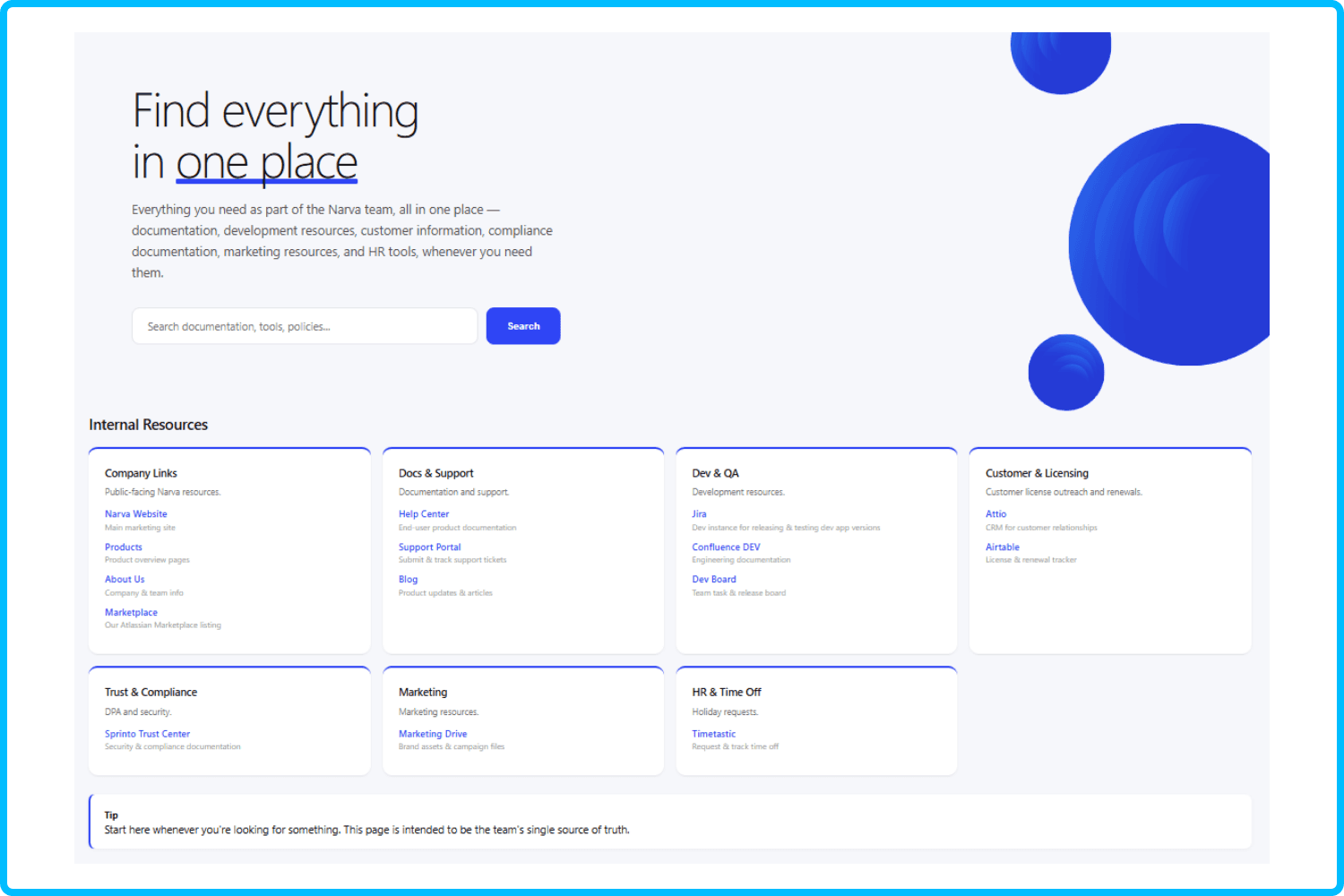
This guide covers how to build a Confluence knowledge base using that page as the walkthrough, not a hypothetical. You'll see the actual prompt that generated it, why Confluence is the right foundation for a KB in the first place, and where teams usually get stuck before they ever reach for a tool like this.
What Is a Confluence Knowledge Base, and Why Use Confluence for It
A Confluence knowledge base is a centralized space where a team documents processes, policies, or product knowledge instead of re-explaining the same thing in Slack every week.
Confluence earns the “centralized” part honestly. Most teams that need a KB are already living in Atlassian tools, so Confluence as knowledge base infrastructure means pages sit next to the Jira tickets they reference, permissions are already understood, and search spans the whole workspace instead of one more isolated tool. The information isn't the problem. What Confluence has never been good at is making that information findable on a bad day, when someone doesn't know the exact page title and doesn't have time to read five headers to figure out which one applies to them.
That gap between “the information exists” and “someone can actually find it in under ten seconds” is where most internal KBs fail.
Confluence for Internal Knowledge Base: Common Challenges
Using Confluence for internal knowledge base purposes tends to work fine at first. But past a handful of pages, the same failure shows up every time: the content is technically there, but nobody can find it faster than just asking a person. Native pages don't support search-as-you-type across a landing page, tabs, filterable lists, or anything that behaves like software instead of a document. So teams either accept the friction, or file a request for something custom and wait for a developer who has other priorities.
The second option is really the core issue. Building anything beyond plain text has always required a skill (writing HTML and CSS) that the people closest to the documentation problem usually don't have. That's not a Confluence limitation so much as a division-of-labor problem, and it's the one HTML Macro's AI feature is actually solving.
How to Create a Knowledge Base in Confluence: Step-by-Step with HTML Macro + AI
Here's exactly how to create a knowledge base in Confluence page, using the hub page above as the real example.
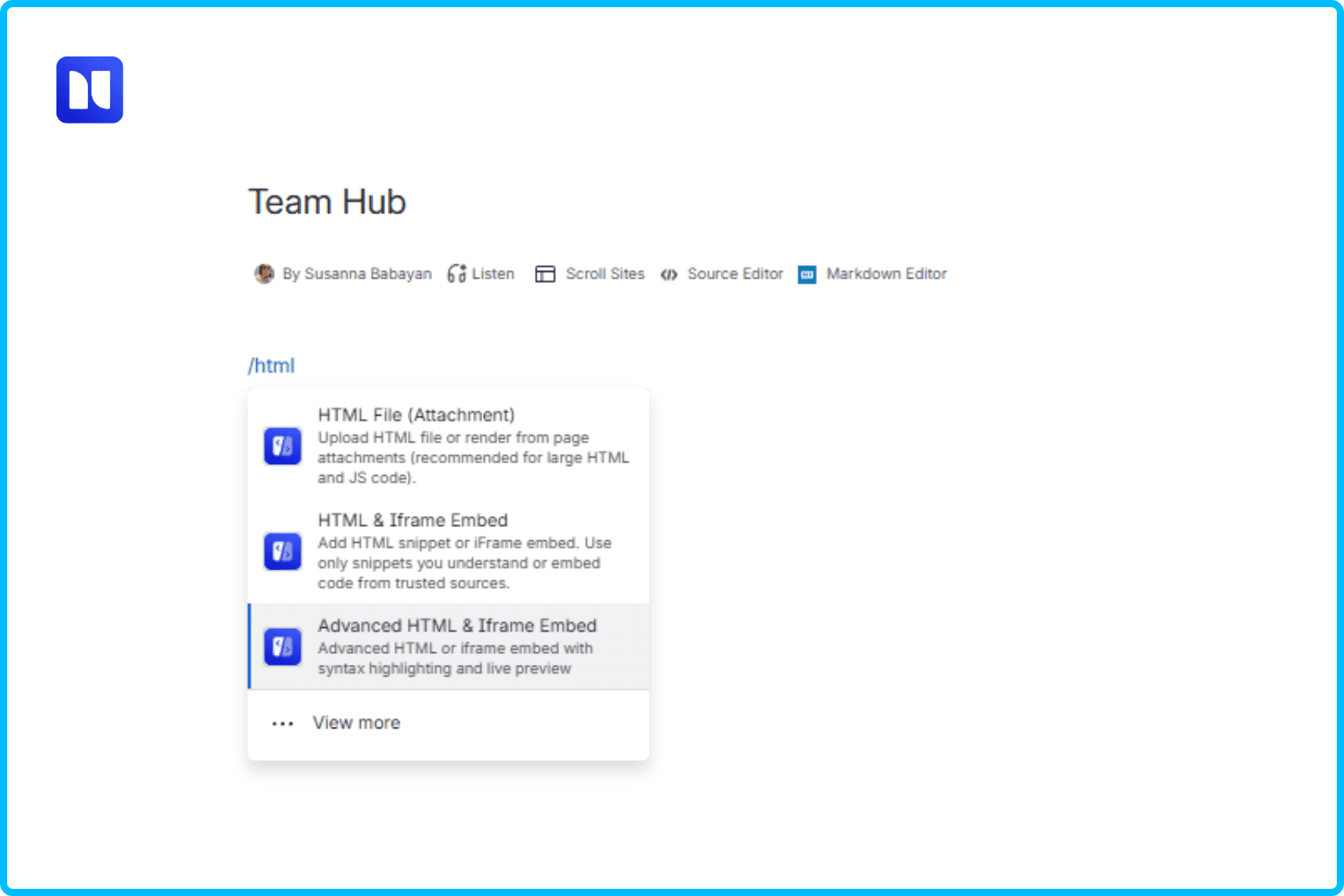
Step 1: Add the HTML Macro
On your Confluence page, type /html to bring up the macro menu, then select Advanced HTML & Iframe Embed. This is the version with syntax highlighting, a live preview pane, and the AI Prompt feature built in.
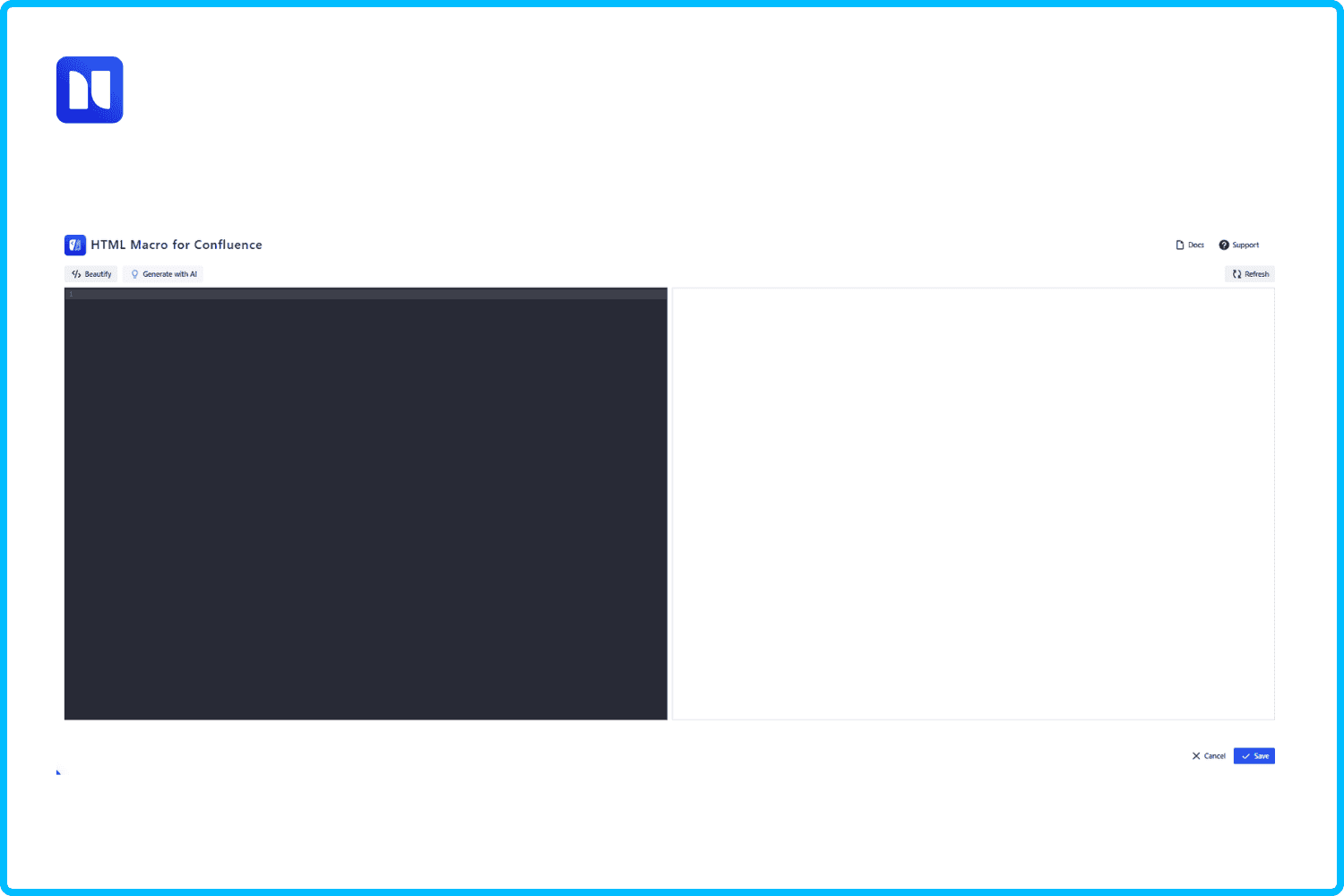
Step 2: Open the code editor
You land on a split-screen editor: a starter HTML skeleton on the left, a live preview pane on the right that updates as you work.
Step 3: Click “Generate with AI”
At the top of the editor, click Generate with AI. This opens a ready-made prompt template built specifically so the output runs correctly inside the macro's sandboxed environment. That template is built specifically so the output runs correctly inside the macro's sandboxed environment, so you won't run into compatibility errors after publishing.
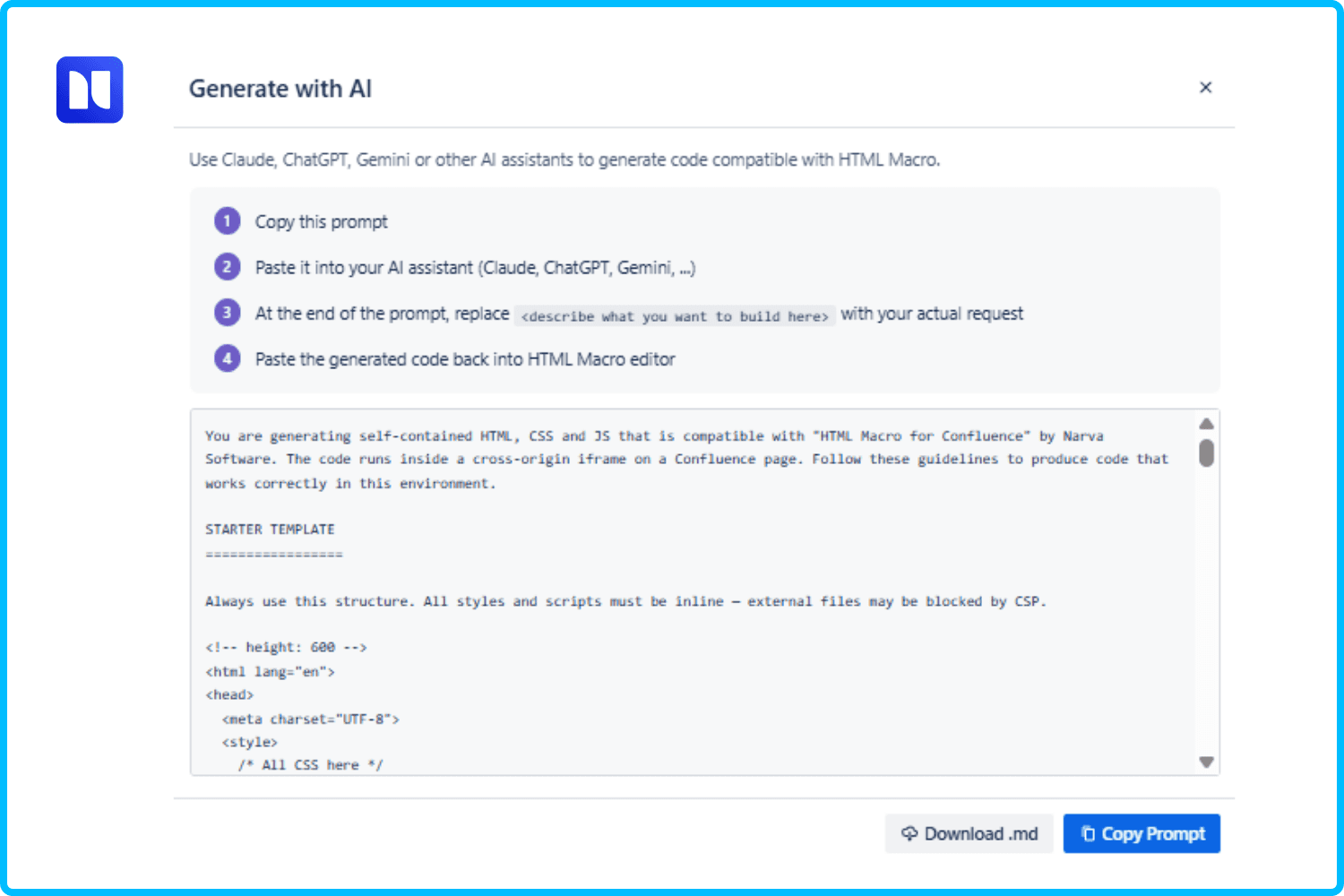
Step 4: Copy the prompt and describe what you want
Click Copy Prompt, paste it into Claude, ChatGPT, Gemini, or whichever assistant you use, then replace the placeholder line at the end. This is the only step that requires knowing anything about the page you want, and notably, it requires zero code. For the hub page, the description was this:
Now generate the code for: a resource hub page titled “Find everything in one place” with a search bar and a grid of cards grouped by category (Company Links, Docs & Support, Dev & QA, Customer & Licensing, Trust & Compliance, Marketing, HR & Time Off), each card listing a few links with short descriptions, plus a tip callout at the bottom
That sentence is the entire spec. Whoever wrote it didn't need to know what a CSS grid is. They needed to know what their team keeps losing track of, which is a completely different and much more useful kind of expertise.
Build a Knowledge Base in Minutes — No Coding Skills Needed
Combine AI and HTML Macro to turn scattered pages into a knowledge hub.
Step 5: Copy the generated code
The assistant returns a complete code block. Copy all of it, from the <!-- height: ... --> line at the top through the closing </html> tag.
Step 6: Paste it into the macro editor
Back in HTML Macro, replace the placeholder code with what you copied. The preview updates immediately, so you're testing the actual behavior (does the search work, are the cards grouped right, do the links go where they should) rather than imagining how it'll look once it's built.
Step 7: Save and publish
Click Save, publish, and the page is fully interactive for anyone who opens it. Not a mockup anyone has to imagine working, it just works.
The whole loop, from opening the macro to a published page, ran in one sitting for the hub page above. That's the part worth sitting with: the distance between “I know what my team needs” and “my team has it” used to be measured in tickets and days. Here it's measured in one prompt.
Confluence Knowledge Base Example
Here's the finished page. Titled “Find everything in one place,” with a line explaining it covers documentation, development resources, customer information, compliance, marketing assets, and HR tools, all in one spot. Below that sits a live search bar, and below that, resource cards grouped by category: Company Links, Docs & Support, Dev & QA, Customer & Licensing, Trust & Compliance, Marketing, and HR & Time Off. Each card lists its relevant links with a short description underneath. A tip at the bottom reinforces that this page is meant to be the first stop, not one document among many.
The version of this page that would've existed in native Confluence is a single long document: headers for each category, bullet lists of links underneath. Every piece of information would technically be present. What wouldn't survive the translation is the actual point of the page, which is that someone should be able to land on it and find what they need in seconds, not by reading. That's not a cosmetic difference. It's the difference between a page that documents something and a page that does something.
That's the standard worth holding any Confluence knowledge base example to: not “does it look nicer,” but “does it save someone time the tenth time they use it, not just the first.”
Confluence Knowledge Base Template: Getting Started Faster
You don't need to start from a blank prompt. These are ready to paste after HTML Macro's generated prompt template, in place of the placeholder line:
Resource hub (like the example above): Now generate the code for a resource hub page with a search bar and a grid of cards grouped by category, each card listing a few links with short descriptions
FAQ block: Now generate the code for a collapsible FAQ accordion where each question expands to show its answer
Onboarding checklist: Now generate the code for an onboarding checklist with progress tracking and a completion percentage
Glossary with search: Now generate the code for a searchable glossary of terms with a live filter as the user types
Status/roadmap table: Now generate the code for a status table with color-coded tags for “In Progress,” “Planned,” and “Done,” sortable by column
None of these are templates in the rigid sense. They're starting sentences. Once you've built one component this way, building the next one isn't a new skill, it's a new sentence, which is really the whole Confluence knowledge base template idea worth taking from this: the template is the process, not any single output.
Confluence Knowledge Base Best Practices
The risk with a tool this fast is that speed becomes its own problem. A few things worth deciding on before more than one person starts building pages this way:
Keep page structure consistent. A hub page like the example only works as a front door if it's actually linked from everywhere people would look for it, not buried under one team's space.
Use labels and page trees deliberately. A great single page doesn't fix a messy KB around it. Interactivity solves findability within a page, not navigation between pages.
Keep AI-generated components on-brand. Naming your brand colors and accessibility requirements in the prompt costs one extra sentence and saves a rebuild later.
Version control your custom HTML. Save working code for components you'll want again instead of regenerating from scratch every time.
Set a review cadence. A resource hub pointing to a tool your team dropped six months ago is worse than a plain page. At least the plain page never claimed to be current.
These are just Confluence knowledge base best practices for any KB, but they matter more here, because the tool has removed the one thing that used to slow bad pages down: how hard they were to make.
The interesting thing about the hub page above isn't that it has a search bar. It's that the person who understood the problem and the person who built the fix were the same person, on the same afternoon, in the same tool where the documentation already lived. That's the shift HTML Macro's AI feature actually represents: not nicer-looking pages, but one fewer handoff between an idea and the thing that gets used. If you've been sitting on how to build a Confluence knowledge base that people would actually choose to open, the fastest path there is describing it, not requesting it.