How to Create a Knowledge Base in Confluence: A Step-by-Step Guide
•
min read


Companies use a mix of solutions for knowledge sharing, documenting, and collaboration. But keeping documentation up to date, available, and accessible across Microsoft SharePoint, Google Drive, Dropbox, CRM, and HR systems feels like a separate full-time job.
Confluence is one of the most common places teams land when they decide to stop relying on tribal knowledge and start writing things down properly. It can handle almost any kind of documentation – onboarding guides for HR, product specs for product, engineering run-books for development, and brand & content guidelines for marketing teams, to name just a few.
But if you have ever worked for a remote or digital-first company, you have probably spent time searching for a document only to find the outdated version hidden in a seemingly random folder, I know I have! This happens when Confluence Knowledge Base is built without a good structure and a clear plan on how to keep it alive – it turns into a pile of orphaned pages nobody can find six months later.
This guide walks through building Confluence knowledge base from scratch: setting up the space, structuring pages, formatting content, and keeping the whole thing alive after the initial burst of enthusiasm fades.
What Is a Knowledge Base in Confluence
A knowledge base in confluence is a centralised repository where companies create, organize and maintain information that their employees, teams, or customers can easily access. It is a structured, searchable workplace that makes it easier to find accurate information, collaborate on documentation, and keep content up to date.
Think of it as a space that captures an organization's collective knowledge. From everyday processes and company policies to technical documentation and project information. Since Confluence supports collaborative editing, version history, page hierarchies, and permissions, multiple contributors can continuously improve documentation while ensuring users always have access to the latest information.
Internal vs. External Knowledge Bases
Knowledge base in Confluence generally falls into two categories: internal and external.
An Internal knowledge base – or sometimes referred to as internal wiki confluence is for employees and internal teams. It is a single truth for all things company related - operational procedures, technical documentation, onboarding materials, meeting notes, and project documentation.
An external knowledge base - is created for customers, partners, or end users. It typically contains product documentation, user guides, troubleshooting articles, FAQs, and support resources that help users resolve issues independently.
While Confluence is widely used for internal documentation, many organizations also publish Confluence content externally using dedicated publishing solutions or integrations.
Common Use Cases for a Confluence Knowledge Base
Flexibility is one of the main advantages of Confluence. Different teams can use it for their various purposes. At the end of the day, Confluence Knowledge Base can cover the documentation needs of a whole organisation.
Employee Onboarding
Employee onboarding hub is one of the most common use of confluence space for documentation. A well-organised onboarding hub includes company policies, organizational charts, software setup guides, role-specific training materials, and frequently asked questions. Employees do not receive information from different sources through different mediums, nor do they have to ask HR team repeatedly for documents – they have everything available at all times.
IT documentation
IT teams use onfluence to document infrastructure, systems, and support processes. A centralized knowledge base can include network diagrams, server documentation, software inventories, troubleshooting guides, incident response procedures, security policies, and configuration instructions. Keeping this information current helps reduce downtime and enables faster issue resolution.
Engineering Documentation
Engineering teams rely on clear documentation to share technical knowledge and preserve architectural decisions. A Confluence knowledge base can store API documentation, system architecture overviews, coding standards, deployment procedures, design decisions, and technical specifications. Centralizing this information makes collaboration easier, supports knowledge transfer, and reduces the risk of valuable expertise being lost when team members move on.
Product Documentation
Product teams use Confluence to manage documentation throughout the product lifecycle. This may include feature specifications, release notes, user guides, product roadmaps, FAQs, and customer-facing documentation. Because Confluence integrates well with other Atlassian tools, teams can easily connect product documentation with development work and issue tracking.
Regardless of the department or use case, a well-structured knowledge base in Confluence helps teams work more efficiently by making information easier to find, maintain, and share. When documentation is organized and accessible, employees spend less time searching for answers and more time focusing on meaningful work.
Step by step guide to create a knowledge base on Confluence
Before You Start: Planning Your Knowledge Base
You’ve decided to create a Confluence knowledge base for your team, or perhaps were tasked with it. It can be a little bit confusing to look at the white space and imagine a well-structured space with all the knowledge your company keeps. It might be tempting to just start typing, but resist that urge for a moment.
Define scope and audience first
Is the knowledge base for newcomers, for engineers, or will your sales team also read it? A KB page that is for everyone tends to be for none at the end. If you just want to create a company-wide base for company-related info for all employees you have an easier task at hand, but if you're serving multiple audiences, it's usually better to split into separate spaces than to force one structure to do everything.
Decide between a dedicated space or an existing one
A brand-new, focused knowledge base deserves its own space rather than living as a folder inside an existing project space. Dedicated spaces get cleaner permissions, their own search scope, and don't get cluttered by unrelated project chatter.
Sketch the page hierarchy before you build anything
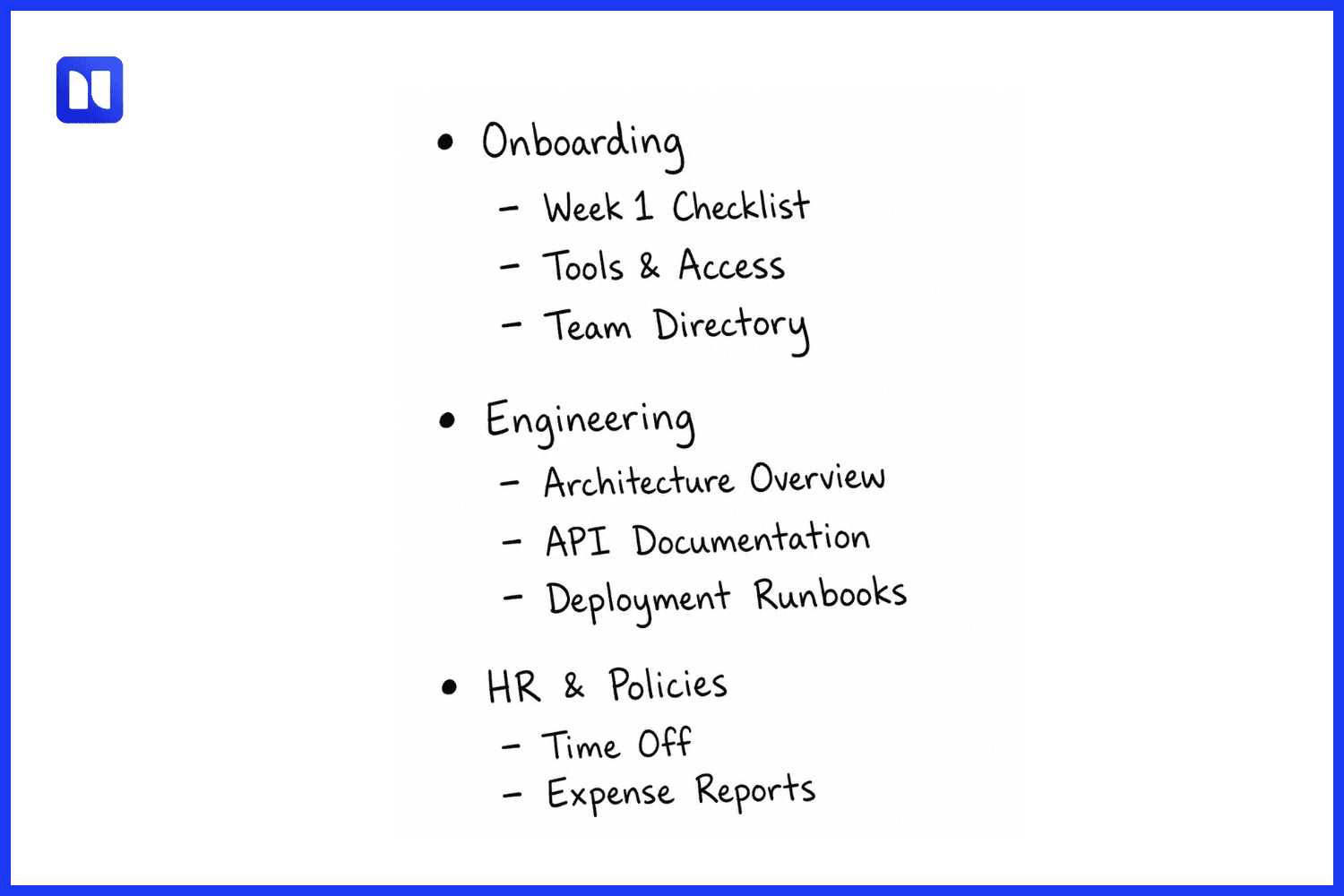
Before you start creating – you need to have a vision of Confluence page tree structure. Get a doc, a paper or whiteboard – whatever works for you, and map the top-level categories and how pages nest under them before touching Confluence.
Teams that’s kip this step almost always end up restructuring within the first month, which means broken links and confused readers. A rough sketch might look like this:
Step 1 – Create a Dedicated Space
To create a new space, click Spaces in the sidebar, then Create a space. Confluence will ask whether you want a blank space, a template-based one (like the "Documentation" or "Knowledge Base" space templates), or an import. For most teams, starting from the Confluence Knowledge Base template gives a reasonable skeleton — a homepage, a few sample categories — that's faster to edit than to build from nothing.
A few things worth getting right immediately, since they're annoying to fix later:
Naming: use something specific and searchable, not "Docs" or "Wiki." "Engineering KB" or "Support SOPs" tells people what they're clicking into before they click.
Space key: Confluence auto-generates this from the name, but you can customize it. Keep it short — it shows up in every URL under that space.
Permissions basics: decide at space creation whether this is open to the whole organization, restricted to specific groups, or a mix. You can layer page-level restrictions later, but the space-level default sets the baseline everyone inherits.
Step 2 – Build your Page Hierarchy
This is where you need the whiteboard sketch of your Confluence documentation structure we discussed earlier. Confluence structures content as parent and child pages — every page can have children nested under it, which shows up as a page tree in the sidebar.
A good rule of thumb: top-level pages are categories, not content. "Engineering," "Onboarding," and "HR Policies" are top-level pages that mostly just link out to their children, rather than pages stuffed with paragraphs themselves. This keeps the sidebar navigable and stops any single page from becoming an unreadable wall of text.
Templates vs. custom pages: Confluence ships with built-in templates (meeting notes, product requirements, how-to articles) that are worth using for consistency, especially across a team where different people are writing pages. If none of the defaults fit — say, you want every SOP to follow the same "Purpose / Steps / Owner / Last Reviewed" format — it's worth building a custom template once and having everyone start from it. Consistency here pays off more than most people expect; readers learn to scan a familiar layout instead of re-orienting on every page.
Navigation: turn on the page tree in the sidebar so people can see where they are in the hierarchy, and use the Children Display or Table of Contents macros on category pages so visitors get an actual index rather than a guess based on page titles.
Step 3 – Format Content for Readability and Reuse
This is the step most knowledge bases get lazy about - how to organize confluence pages. It's usually the difference between documentation people trust and documentation people route around
Basics worth applying consistently:
Headings for actual structure, not just bold text — this is what makes the auto-generated table of contents and search results useful.
Panels and info macros to call out warnings, prerequisites, or "read this first" notes without burying them in body text.
Tables for anything comparative or reference-style — permission matrices, tool comparisons, status definitions.
Expand macros for long troubleshooting steps or edge cases that most readers won't need but some will
Native Confluence macros cover a lot of ground, but they do have a ceiling. For knowledge bases that need custom styling, embedded dashboards, or interactive elements — think an internal tool status page, an embedded calculator, or a styled comparison widget — the built-in macro library runs out pretty fast. This is where Atlassian app like HTML Macro for Confluence becomes useful: it lets you embed html in confluence - drop custom HTML, CSS, or JavaScript directly into a page instead of working around Confluence's formatting limits or exporting content to a separate tool just to get a specific layout.
This is also where AI tools can shortcut a lot of the manual build work. Instead of writing a widget from scratch, you can ask an AI assistant to generate the HTML/CSS/JS for something like a status dashboard or an interactive checklist, paste it straight into the HTML macro, and share the finished page with your team — no separate hosting, dev ticket, or waiting on engineering bandwidth for something that's really just a documentation nice-to-have.
The other common ceiling shows up in technical and scientific documentation. If your KB includes engineering or research content with actual formulas — statistical methods, algorithm complexity, physics equations — typing them out as plain text or, worse, pasting in screenshots of equations from another tool, looks unprofessional and breaks the moment someone needs to edit it. LaTeX Math for Confluence solves this by rendering proper mathematical notation directly in the page, so equations stay clean, editable, and consistent with how the rest of your technical docs look.
Neither of these is necessary for a basic onboarding wiki. But for engineering-heavy or research-heavy knowledge bases, they tend to come up within the first few pages of writing.
Step 4 – Organize with Labels, Permissions, and Search
Once you've got more than a couple dozen pages, hierarchy alone stops being enough. This is where labels and search discipline start doing real work.
Labels: tag pages with consistent, low-friction labels — think onboarding, sop, deprecated, needs-review — rather than one-off tags nobody else uses. Labels let you build dynamic content lists (via the Content by Label macro) that stay current automatically, instead of manually maintained link lists that go stale.
Permissions: not everything belongs to everyone. HR policies, incident postmortems, or anything with compensation or security details should get page-level restrictions rather than relying on the space default. Confluence lets you restrict viewing and editing per page or per page tree — use it deliberately rather than as an afterthought once something sensitive has already leaked into a general-access space.
Search: Confluence's native search is decent but improves a lot with clean labeling and page titles that actually describe content rather than being clever. Encourage contributors to title pages the way someone searching would phrase it — "How to Request VPN Access" beats "VPN Stuff" every time it shows up in search results.
Step 5 – Maintain and Update Your Knowledge Base
Most knowledge bases look nice and helpful at launch, but Confluence knowledge management is an ongoing process. Otherwise, eight months in, it fails miserably if nobody owns updates and half the pages describe a process that changed in March.
Assign ownership at the page or section level, not just "the team" in the abstract. A named owner for the onboarding hub, a named owner for deployment runbooks — someone whose job it is to notice when their section is wrong.
Set a review cadence. Quarterly is reasonable for most SOPs; faster for anything tied to tooling that changes often. Confluence's page properties and label systems can be used to flag pages as needs-review and surface them automatically, so stale content doesn't just quietly rot.
Plan for content leaving Confluence, too. Not every audience lives in Confluence. Maybe you need to sync documentation to a public GitHub repo, feed a static site generator for a developer-facing docs site, or share a spec with an external contractor who doesn't have a license. Reformatting pages by hand for these situations is tedious and error-prone. Markdown Exporter for Confluence handles this by converting pages to clean Markdown automatically, so content built for internal use can move outside Confluence without a manual rewrite every time. One of the most common reasons teams reach for it these days is feeding AI tools. Clean Markdown is a much easier format to hand to an AI assistant as context than raw Confluence markup — whether that's pulling in a batch of SOPs so an AI can answer questions against them, or exporting a technical wiki so an AI coding assistant has the right background on how something works.
Common Mistakes to Avoid
Over-nesting pages. If someone has to click through five levels to find an answer, the hierarchy has failed, regardless of how logical it seemed on the whiteboard.
No clear ownership. A knowledge base with no assigned owner slowly becomes a knowledge base nobody trusts.
Inconsistent formatting. When every page looks different, readers can't build the scanning habits that make documentation fast to use.
Ignoring permissions until something goes wrong. Set restrictions deliberately from the start rather than reactively after a sensitive page gets wider visibility than intended.
Treating launch as the finish line. The first version of a KB is a draft. The real test is whether it's still accurate a year later.
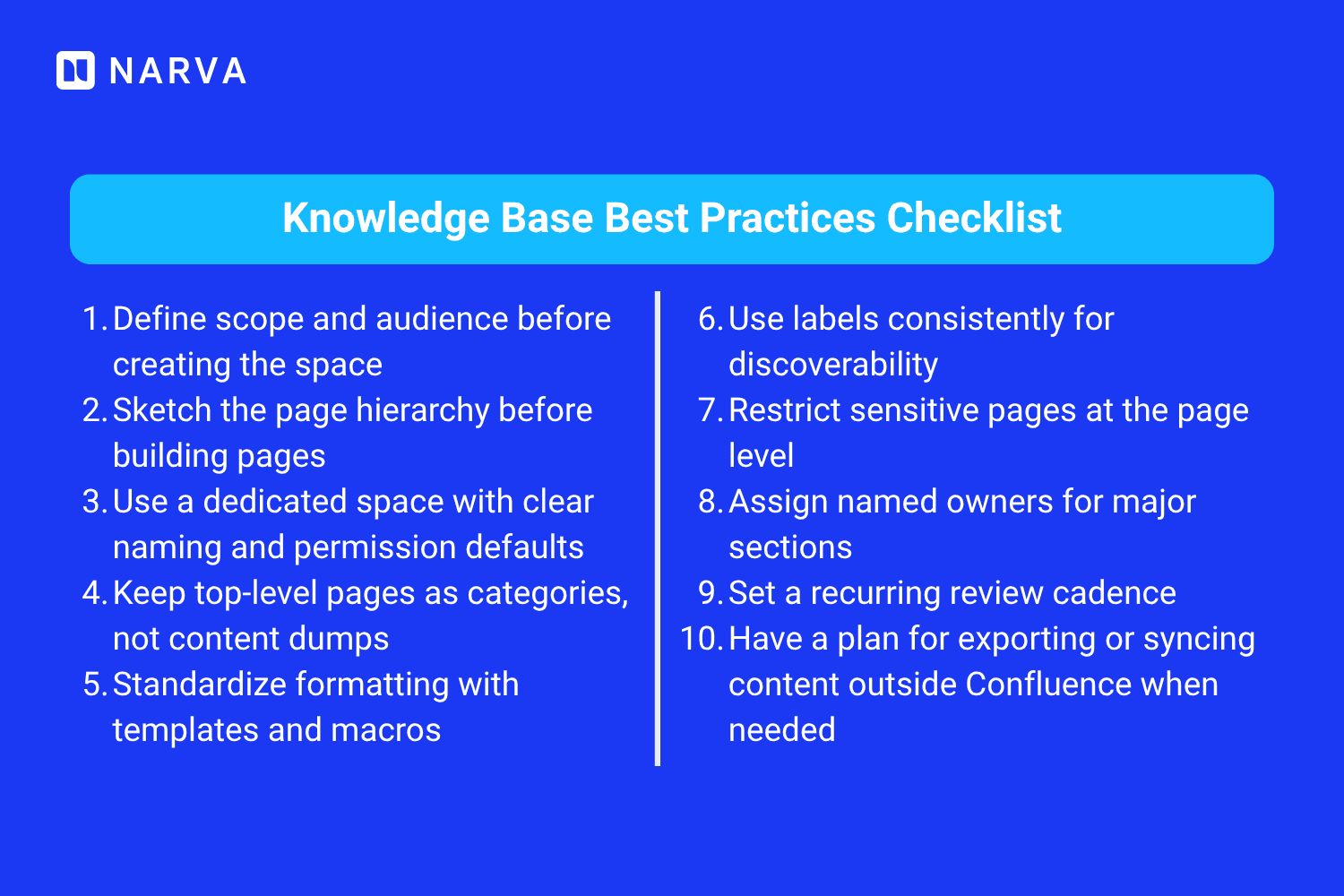
Knowledge Base Best Practices Checklist
Here are some of the basic Confluence best practices that make a huge difference between a good knowledge base and KB nobody uses.
Conclusion
A Confluence knowledge base succeeds or fails less on which features you use and more on whether you planned the structure before writing, kept formatting consistent, and assigned real ownership for keeping it current. Confluence handles the fundamentals well — spaces, hierarchy, permissions, search — and covers most day-to-day documentation needs out of the box.
Where native formatting or export options fall short — custom HTML elements, proper math notation, or getting content out into Markdown for other tools — that's usually a sign it's worth looking at purpose-built Confluence apps rather than working around the limitation by hand. It's a smaller investment than it sounds, and it tends to pay for itself the first time someone doesn't have to reformat a page manually.
You might also like...

This guide maps the Jira plugins ecosystem from the ground up. We’ll cover the shift from legacy plugins to modern cloud apps, show you how to vet the best plugins, and identify the Jira app categories that actually return time to your team instead of adding complexity to your workflows.