Atlassian Tools
How to write LaTeX (math equations) in Confluence
•
min read


To write LaTeX in Confluence, you install a LaTeX math app from the Atlassian Marketplace, then type standard LaTeX syntax inside its inline or block macro — Confluence renders it as a formatted equation. Confluence ships with no math engine of its own, so the app that you download is the piece that turns raw syntax into something a reader can actually follow.
Anyone who has tried it the hard way knows the struggle. You copy an equation out of a Word doc, paste it into a Confluence page, hit publish, and the page comes back showing \sum_{i=1}^{n} as literal text, or a screenshot that looked sharp on your monitor but appears like a ransom note on your teammate’s screen.
Math is one of the things the Confluence editor was never built to handle. And this article shows you what to use instead.
Why writing math in Confluence is so difficult
Confluence is good at text, tables, code blocks, and links. But it has no built-in way to render math in Confluence. No equation editor, nothing that reads TeX, no setting buried in the toolbar. Writing LaTeX in Confluence simply isn’t supported out of the box.
That leaves three workarounds, and all three fail in their own way.
Formatting limitations
The rich-text editor can fake the simplest expressions — a superscript here, a fraction there — but it falls apart fast. Stacked fractions, aligned multi-line proofs, integrals with bounds, and anything with real notation, the editor either flattens or refuses. Greek letters become a hint through the special characters menu for a symbol that may not exist.
Copy/paste from academic tools
Paste from Overleaf or LyX, and you get one of two bad outcomes: the literal source code printed on the page, or a flat image stripped of any way to edit it. One is broken text, the other a picture pretending to be a Confluence math formula.
No native LaTeX, so no clear path
Without a renderer, every option is a compromise between “unreadable” and “uneditable”.
Ways to write math equations in Confluence
While there are three options to get LaTeX equations in Confluence, two of them are dead ends for any team that writes math on a regular (or even semi-regular) basis.
Native options (that don’t really exist)
There is no native LaTeX support and no native equation editor. People improvise by typing Unicode symbols by hand or dropping the formula into a code macro, which renders it as monospaced source, not math.
Image-based equations (that don’t scale)
Screenshot the equation, paste the image, move on. Fine, until you realize the images aren’t editable and searchable, and that they render at the wrong resolution on half your team’s displays — or that every correction means re-screenshotting and re-uploading.
LaTeX-based solutions
Since there are no native options to write LaTeX, LaTeX apps are some of the best Confluence plugins.
A marketplace app adds a macro that renders TeX directly inside the page. This is how teams actually write LaTeX in Confluence: you write a Confluence equation as code, and the app renders it as formatted math that stays editable, stays searchable, and survives export. If you’ve searched “latex confluence” and found a dozen apps, this is the category they all belong to.
Try LaTeX math for Confluence
Write Technical documentation the way you are supposed to
An expert-recommended way to write math in Confluence using LaTeX
The easiest way to add LaTeX to Confluence is with LaTeX Math for Confluence by Narva — over 3,000 installs, Cloud Fortified, and built on Atlassian Forge, so it runs inside your instance with no data egress.
Writing LaTeX in Confluence with a dedicated macro means equations render with MathJax, which means that they hold their shape when you export a page to PDF or Microsoft Word instead of collapsing into broken characters. Here’s the full Confluence LaTeX workflow, start to finish.
Step 1: Install a LaTeX math app
From the Atlassian Marketplace, open the LaTeX math for Confluence app and click Try it free. Cloud installs in seconds and needs no server-side setup. Once it’s live, the macros are available on every page in your instance. You can find full setup notes in our documentation.
Step 2: Insert a math equation
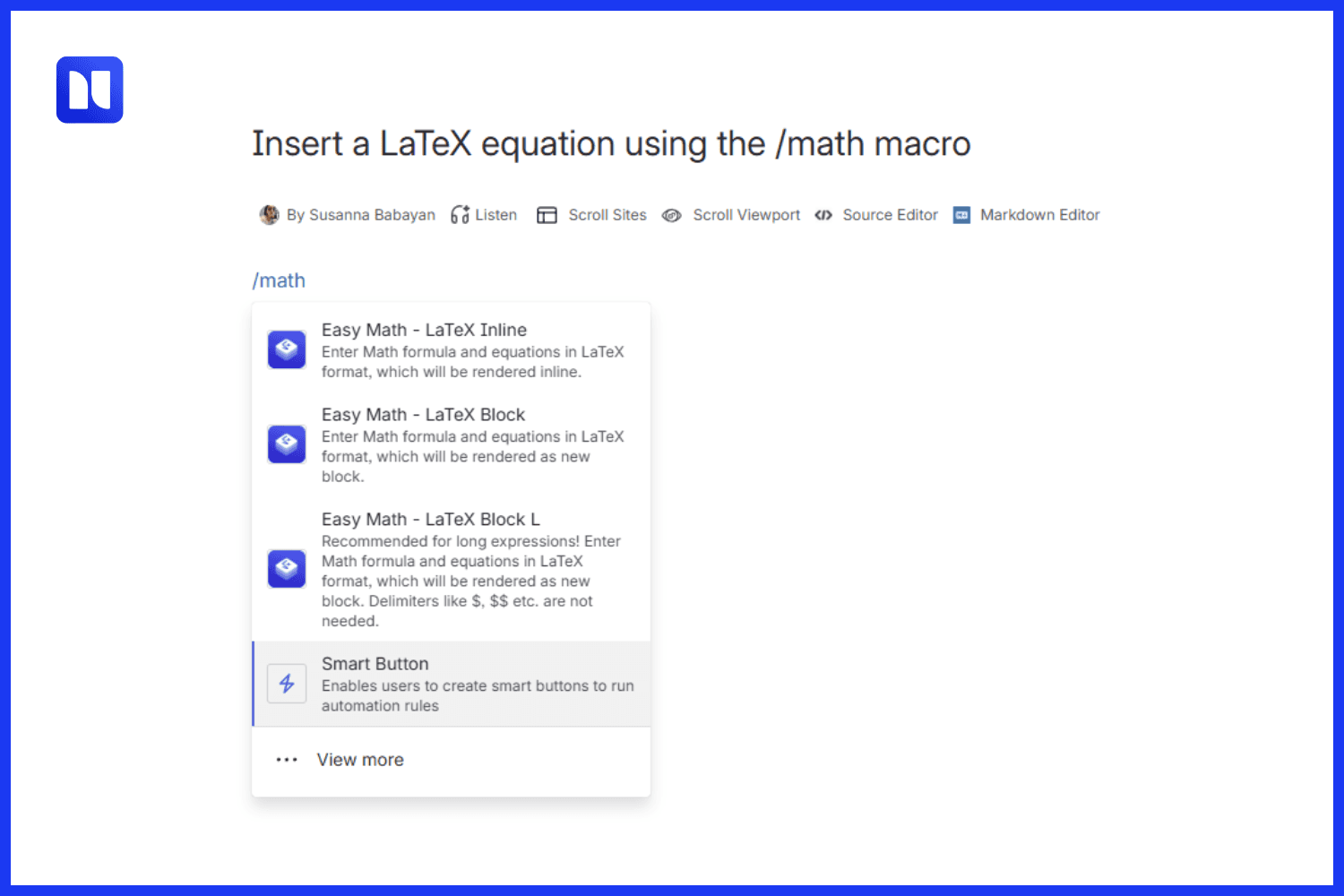
Open any page in the editor and type /math. The macro picker shows two options:
Easy Math - LaTeX Inline — for short expressions that fit inside a line or text
Easy Math - LaTeX Block — for large or standalone equations on their own line, with alignment control
Pick one, type your TeX, and the live preview renders it as you go, with error detection that flags a bad command before you publish. The difference between the two macros is placement: inline rides along with your sentence, while block stands alone.
Step 3: Write inline math in Confluence
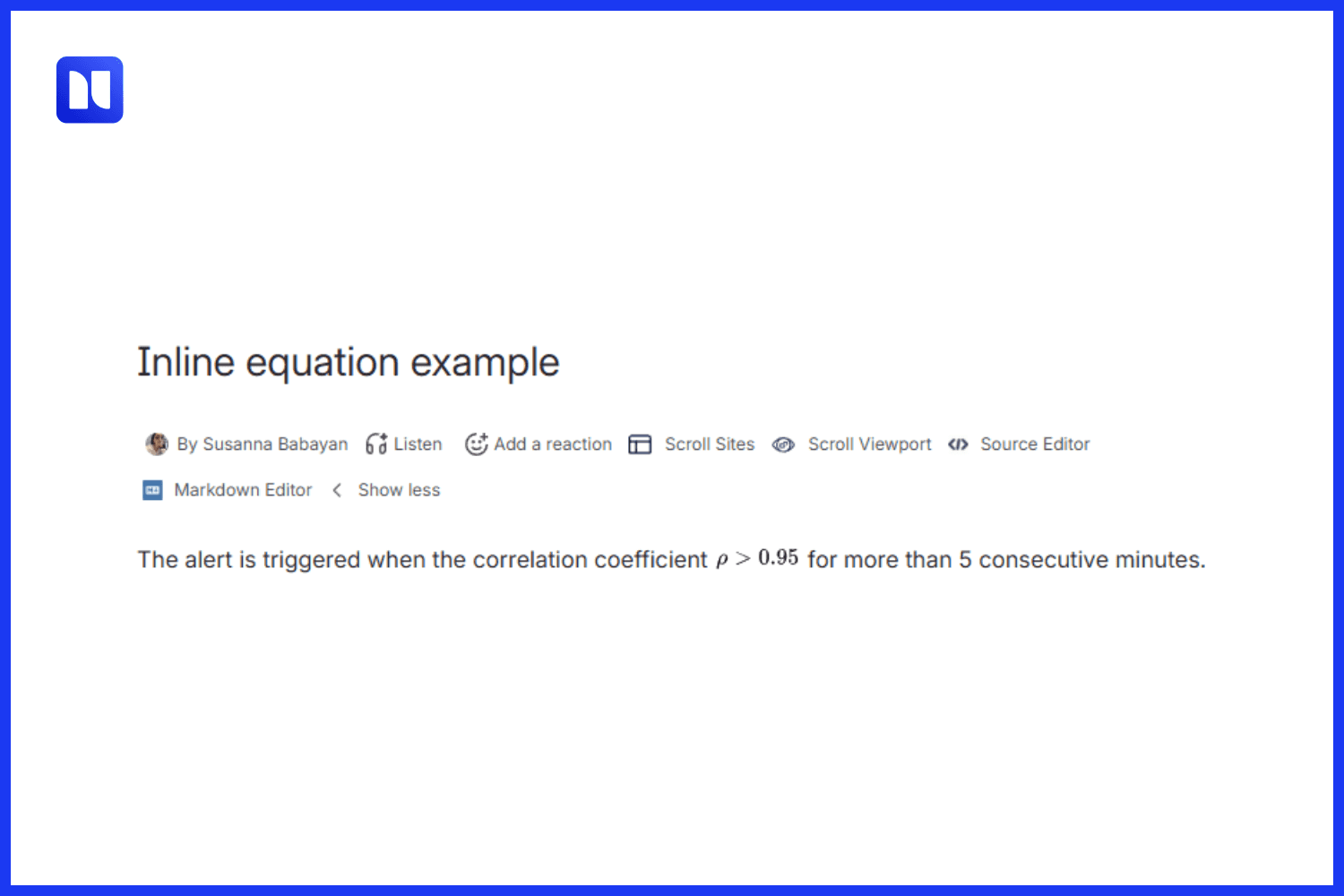
Use the inline macro for anything that belongs mid-sentence, such as variables, units, or thresholds. Inline math Confluence renders best for short expressions; the notation stays in the flow of the text instead of breaking the paragraph apart.
Drop E = mc^2 into a sentence, and it renders right where it sits. A runbook line like "alert when \rho > 0.95" reads as one thought, not a sentence interrupted by a picture. This is where Confluence math formulas earn their keep.
Step 4: Write block equations in Confluence
Use the block macro for the heavy ones: derivations, anything tall or wide, anything that needs to be centered and given room. Block equations Confluence handles in a way that each formula gets its own line and alignment controls.
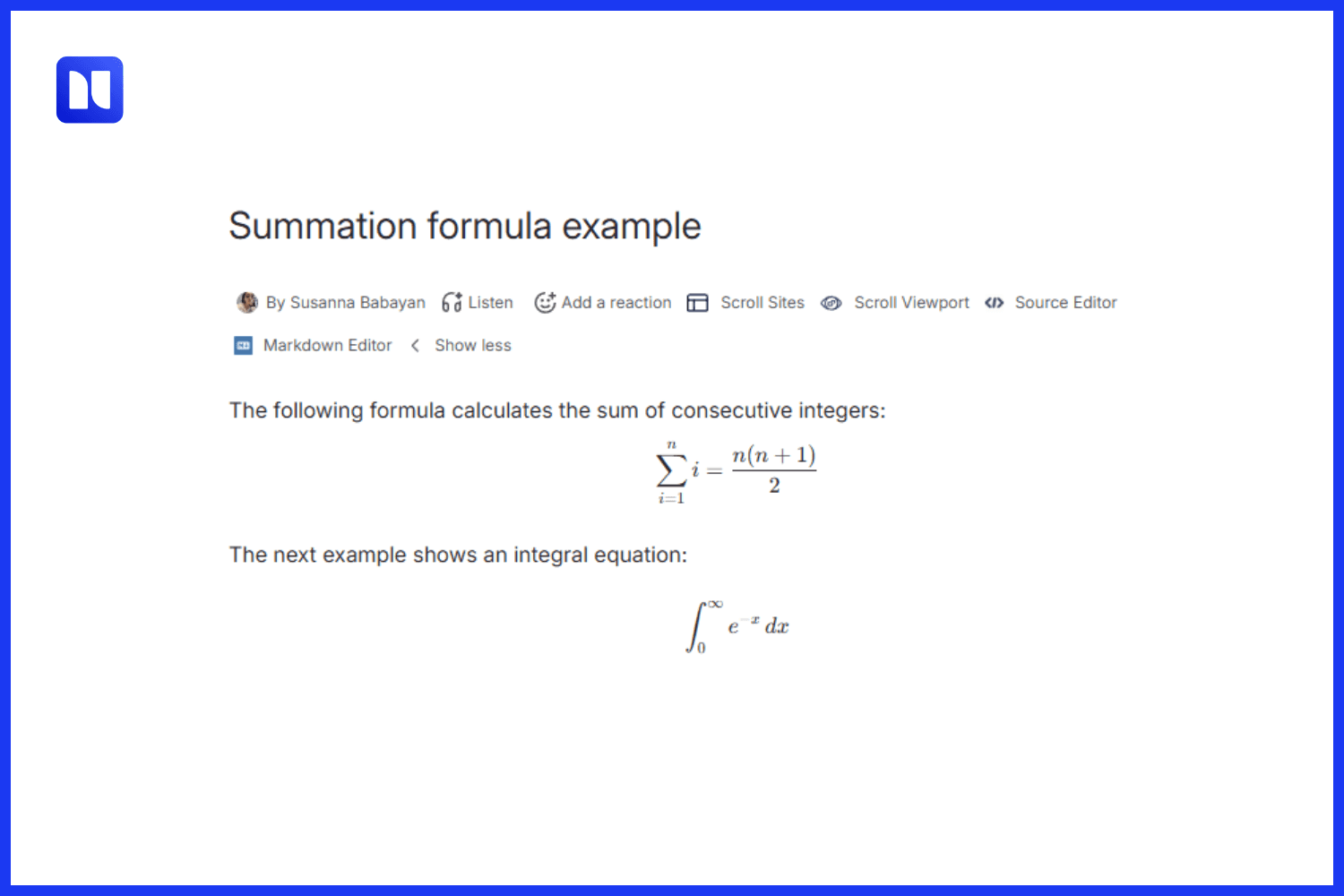
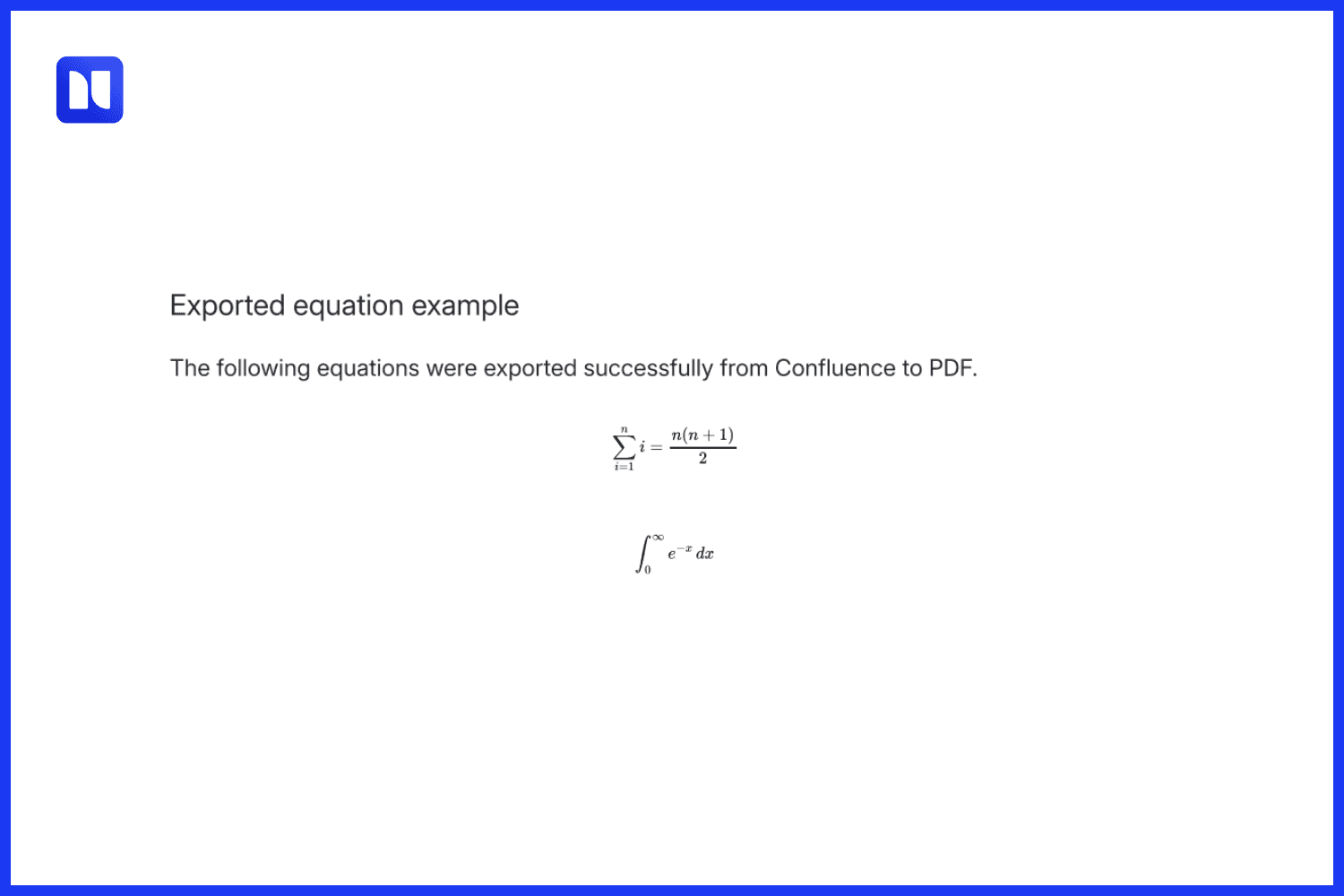
A summation reads properly as a block:
\sum_{i=1}^{n} i = \frac{n(n+1)}{2}
For multi-line LaTeX equations in Confluence, wrap them with \displaylines and break lines with \\:
\displaylines{x = a + b \\ y = b + c}
Common math equation examples in Confluence
Copy-paste the syntax below straight into either macro. These cover the notation most technical teams reach for first.
Equation type | Copy-paste LaTeX |
Fraction | \frac{a}{b} |
Integral | \int_{0}^{\infty} e^{-x}\,dx |
Matrix | \begin{pmatrix} a & b \\ c & d \end{pmatrix} |
Greek symbols | \alpha \beta \gamma \Delta \pi \sigma |
The same syntax powers finance and engineering formulas, too. Once you know the building blocks, the rest is composition.
Best practices for writing math in Confluence
A few habits keep Confluence LaTeX math readable as it scales across a space.
Readability — Match the macro to the job: inline for short expressions, block for anything that needs vertical space. A four-line derivation crammed inline is harder to read than no math at all.
Consistency — Standardize notations across a space, using the same variable names, the same conventions, and one “house style”. A reader shouldn’t have to guess whether /sigma means the same thing on two pages.
Macros and templates — Save your most-used equations into a page template so the team isn’t retyping the quadratic formula every sprint. Write it once, reuse it everywhere you need.
Page performance — MathJax renders client-side, so that a page with two hundred block equations will feel sluggish to load. Split long technical specs across linked pages instead of stacking everything on one.
Troubleshooting math rendering issues
Most rendering issues come from unsupported syntax or limitations in how math is handled in Confluence. When LaTeX in Confluence won’t render, three causes show up most:
Equations not rendering (black box or raw text) — This is almost always a syntax error or an unsupported command
Broken symbols — A command that isn’t in the supported set, or a typo such as /fraq instead of /frac.
Page load issues — Too many equations on a single page. Split it, and rendering speeds back up.
From “good enough for now” to documentation that lasts
Most teams reach for the math screenshots because it works today. The cost arrives later: the formula nobody can edit, the symbol that drops on export, the page a reviewer flags the morning it ships. Good-enough math has a way of becoming someone’s overtime.
LaTeX Math for Confluence removes the later cost. Equations stay editable text, render inline or as a block, and survive the trip to PDF or Word intact. It’s a zero-risk add for any space that works with real notation, which is exactly why teams comparing options keep choosing it for both inline and block work and the depth of its LaTeX functions.

Nar is the founder of Narva Software and a former software developer with real-world experience using Atlassian tools. After facing the limitations of Jira and Confluence himself, he set out to build simple, effective apps that make teamwork easier. Today, his focus is on creating practical solutions that help teams work faster and smarter — and are trusted by companies around the world.