Productivity
Jira Tips and Tricks to Work Faster
•
min read





Almost every team uses Jira, but hardly any team uses it well. Most people learn just enough to create a ticket, drag it across a board, and close it - which means the automation, search, and reporting features that could actually save hours every week go untouched. Whether you're brand new to Jira, running sprints as a PM, or you're the admin everyone pings when a workflow breaks, this guide has tips sorted by role so you can jump straight to what's useful and get tips on how to use Jira effectively.
Jira Tips for Beginners
Tip 1: Get familiar with Jira work item types
Get comfortable with Jira work items (previously called Jira issues) before you touch anything else. Every Jira space is built on four core issue types:
1. Epics - large bodies of work
2. Stories - a feature from the user's perspective
3. Tasks - a piece of work with no user-facing angle
4. Bugs - something broken
Knowing which one to use — and how they nest, with Stories and Tasks living under Epics — will save you from a backlog full of miscategorized issues that are painful to report on later.
Tip 2: Master key Jira shortcuts
Jira has a surprising number of shortcuts that most users never discover because they're buried outside the toolbar. A few Jira shortcuts worth memorizing:
Press
cto create a new issue from anywhere
Press
.(period) to open the command palette, which lets you jump to any action by typing its name
Press
gthen i to go straight to your issues
Press
/to jump into search
These alone can cut a surprising amount of clicking out of a normal day.
Tip 3: Set up Personal filters early on
Set up personal filters and notification preferences early, otherwise it can get overwhelming fast. Go into your profile settings and mark which events should email or ping to you – issue assigned to you, you being mentioned in a comment, updates on ticket that you are watching, etc., There are plenty of events you will be fine catching later. Pair this with a saved filter for "my open issues" so you have one place to check instead of hunting across projects.
One of the best use of the Jira filters is filtering subscriptions. you can basically subscribe to a filter to have the results emailed to you. This is a common practice among managers or PMs. Every monday they'd get the filter results and then do a meeting with their teams to review it all. You can easily use the same feature to stay on top of your Jira space.
Tip 4: Make use of quick filters
Use "Assigned to Me" and quick filters to manage your workload. Every board has a built-in "Only My Issues" quick filter - turn it on when you just need to see what's yours instead of the whole team's board. If your team has set up additional quick filters (by priority, by label, by epic), get familiar with them; they're usually faster than typing a new search every time.
Tip 5: Use mention feature
@mention teammates in comments instead of messaging them elsewhere. Typing @name in a comment notifies that person directly and keeps the context attached to the ticket, instead of a conversation happening in Slack that nobody can find again in three weeks. It's a small habit, but it's the difference between a ticket that tells the full story and one that requires you to go dig through DMs to understand a decision.
Jira Tips for Project Managers
Tip 6: Use JQL for searches
Use JQL for searches you'll actually want to save and reuse. The basic search bar is fine for a quick lookup, but JQL (Jira Query Language) is what lets you build precise, reusable views.
A few examples worth stealing:
Everything overdue and still open, assigned to your team:
project = "ENG"AND status not in (Done, Closed) ANDduedate < now()AND assignee inmembersOf("engineering-team")
Everything that moved into your current sprint after it started, which is useful for spotting scope creep: sprint in
openSprints()AND created> startOfSprint()
High-priority bugs with no assignee, so nothing critical falls through the cracks: issuetype =
BugAND priority in (Highest, High) AND assignee isEMPTY ANDstatus != Done
Save any of these as a filter, and you can turn it into a dashboard gadget, share it with the team, or set it as the source for an automation rule.
Tip 7: Add gadgets deliberately
Build a dashboard around gadgets that answer real questions. Don't default to the out-of-the-box dashboard. Add gadgets deliberately: a Sprint Burndown Chart to track pace mid-sprint, a Velocity Chart to see trends across sprints (useful for estimating future capacity), and a Work Item Statistics gadget powered by one of your saved JQL filters — for example, a live breakdown of open bugs by priority. A dashboard built around specific questions your team actually asks is far more useful than one with every default gadget switched on.
Tip 8: Cut board noise with swimlanes and quick filters
Use swimlanes and quick filters to cut board noise. Swimlanes let you group board rows by assignee, epic, or a custom JQL rule instead of viewing every issue as one flat list. Combine that with quick filters (by component, label, or issue type) and a board that used to feel overwhelming becomes something you can actually read at a glance during standup.
Tip 9: Set WIP limits to catch bottlenecks early
Add a WIP (work-in-progress) limit to a column by naming it clearly, like "In Progress," and configuring the column constraint in board settings so it visually flags when the limit is exceeded. This is a simple way to catch a before it derails the sprint.
Tip 10: Use issue linking to make dependencies visible
"Blocks," "is blocked by," "relates to," and "duplicates" aren't just decorative — use them so dependencies show up directly on the board and in reports, instead of living only in someone's head or a stray Slack thread. This matters most at sprint planning, when you need to know at a glance what can't start until something else finishes.
Tip 11: Read your sprint and velocity reports the right way
A burndown chart that's flat for the first half of a sprint isn't automatically a red flag — it often just means work is in progress but not yet marked done. Look at velocity trends across several sprints instead of judging any single sprint in isolation, and use the Sprint Report specifically to see what was added or removed mid-sprint, which is often a better signal of planning problems than the burndown line itself.
Jira Tips to Get More Out of Labels
Tip 12: Use labels to make issues easier to track and search
Labels are one of the fastest ways to make a backlog searchable without adding a whole custom field. Learn how to use labels to improve issue tracking and searchability in Jira.
Tip 13: Decide between default and custom labels for your team
Not every team needs a custom label scheme - but some do. The difference between default labels vs custom labels in Jira comes down to the team needs. Figure out which approach fits before your label list turns into chaos.
Tip 14: Keep your label taxonomy from sprawling out of control
A label system is only useful if it stays consistent.
Here's how to manage one as it grows: The Ultimate Guide to Managing and Customizing Jira Labels
Jira tips for better Issue Management
Tip 15: Use bug report templates so issues arrive with what you actually need
A good bug template means fewer back-and-forth comments asking "can you reproduce this?" The best way to reduce the friction and improve efficiency is to create Jira bug report templates your team can act on.
Tip 16: Build reusable templates for recurring issue types and projects
If your team spins up the same kind of project or issue repeatedly, a template saves setup time and keeps things consistent from the start. Refer to our Complete Guide to Creating and Managing Jira Templates for details.
Jira Tips for Power Users and Admins
Tip 17: Automate repetitive tasks with Jira Automation rules
This is where Jira stops being a place you update manually and starts doing some of the work for you. Two rules worth setting up immediately:
Auto-assign on status change:
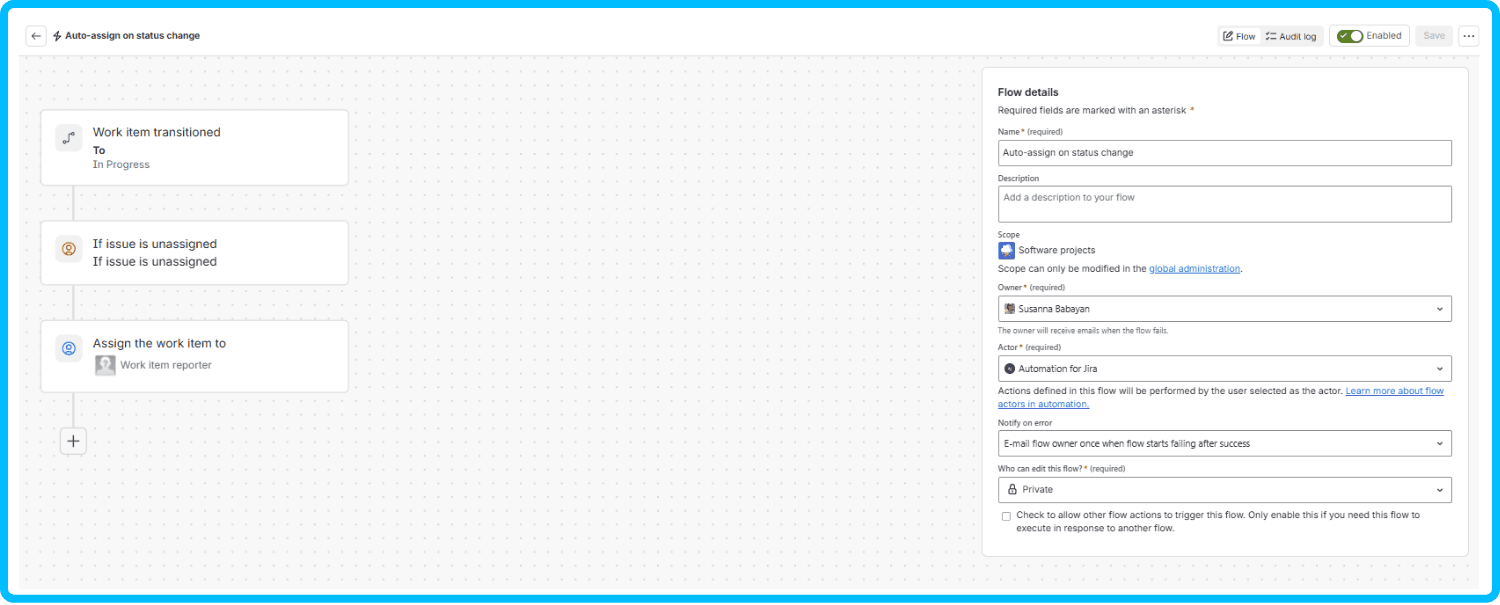
Trigger - issue transitioned to "In Progress."
Condition - assignee is empty.
Action - assign to the reporter
This closes the gap where tickets move forward with no owner attached.
Auto-close stale tickets:

Trigger - scheduled (e.g., runs daily).
Condition - issue status is "Waiting on Customer" or "Blocked" and has had no update in 14+ days.
Action - transition to "Closed" and post a comment explaining why, so nothing silently disappears without a trace.
Both take a few minutes to set up in Project Settings → Automation and run quietly in the background from then on.
Tip 18: Color-code cards to flag aging or at-risk work
Under board settings, set card colors based on a JQL condition, for example, issues open longer than 5 days with no status change. A board where at-risk work turns visibly red is far easier to scan in a two-minute standup than one where you have to click into every card to check its age.
Tip 19: Use bulk edit and bulk transition for large-scale changes
When you need to move fifty tickets to a new sprint, reassign an entire epic, or update a field across a whole component, don't do it one ticket at a time. Select issues from a search result and use Tools → Bulk Change to edit, transition, or move them all in one pass.
Tip 20: Standardize workflows with shared workflow schemes
If every team's project has a slightly different set of statuses and transitions, cross-project reporting gets messy fast. Build a shared workflow scheme that covers the common case, and only branch off into project-specific workflows where there's a genuine reason to.
Tip 21: Extend Jira's core functionality with apps and plugins
Jira's native features cover a lot, but not everything — plugins fill the rest. Get familiar with Jira Apps, Add-ons and Plugins. There are few laser-focus apps that solve the issues that native Jira misses. The right Jira plugin that improves your workflow can solve a problem your team has been working around manually for months.
Bonus: Lesser-Known Jira Tricks
Tip 22: Use the command palette for almost everything
Press . from anywhere in Jira to open the command palette, then type what you want — "create issue," a project name, a teammate's name — instead of navigating menus. It's the fastest way to move around once you're used to it.
Tip 23: Use markdown-style formatting in comments and descriptions
Jira's editor supports shortcuts like typing ** around text to bold it, # for headings, and - for bullet lists, without touching the toolbar. It's a small thing, but it adds up over hundreds of comments a week.
Tip 24: Use the Epic panel and roadmap view for high-level planning
Instead of scrolling through a flat backlog, the Epic panel and Roadmap views group work at the epic level so you can see timing and scope across a quarter at a glance - useful for stakeholder conversations that don't need ticket-level detail.
Tip 25: Export issues to CSV or Excel for stakeholder reporting
Not every stakeholder wants a Jira login. Run your filter, then use Export → CSV (or Excel) to hand off a clean, static snapshot of exactly the issues you want to report on, without giving away board access.
Wrapping Up
You don't need to adopt all of these at once to feel the difference. A couple of keyboard shortcuts, one saved JQL filter, and a single automation rule can already save your team real time every week. Pick three tips from this list, try them for the next few sprints, and build from there — the tools that stick are usually the ones you started small with. And if your team lives in Confluence as much as Jira, the companion piece, 25 Confluence Tips and Tricks to Work Smarter in 2026, is worth a read next.